
Audio to Subs
Turn speech from audio or video files into subtitles you can review and save.
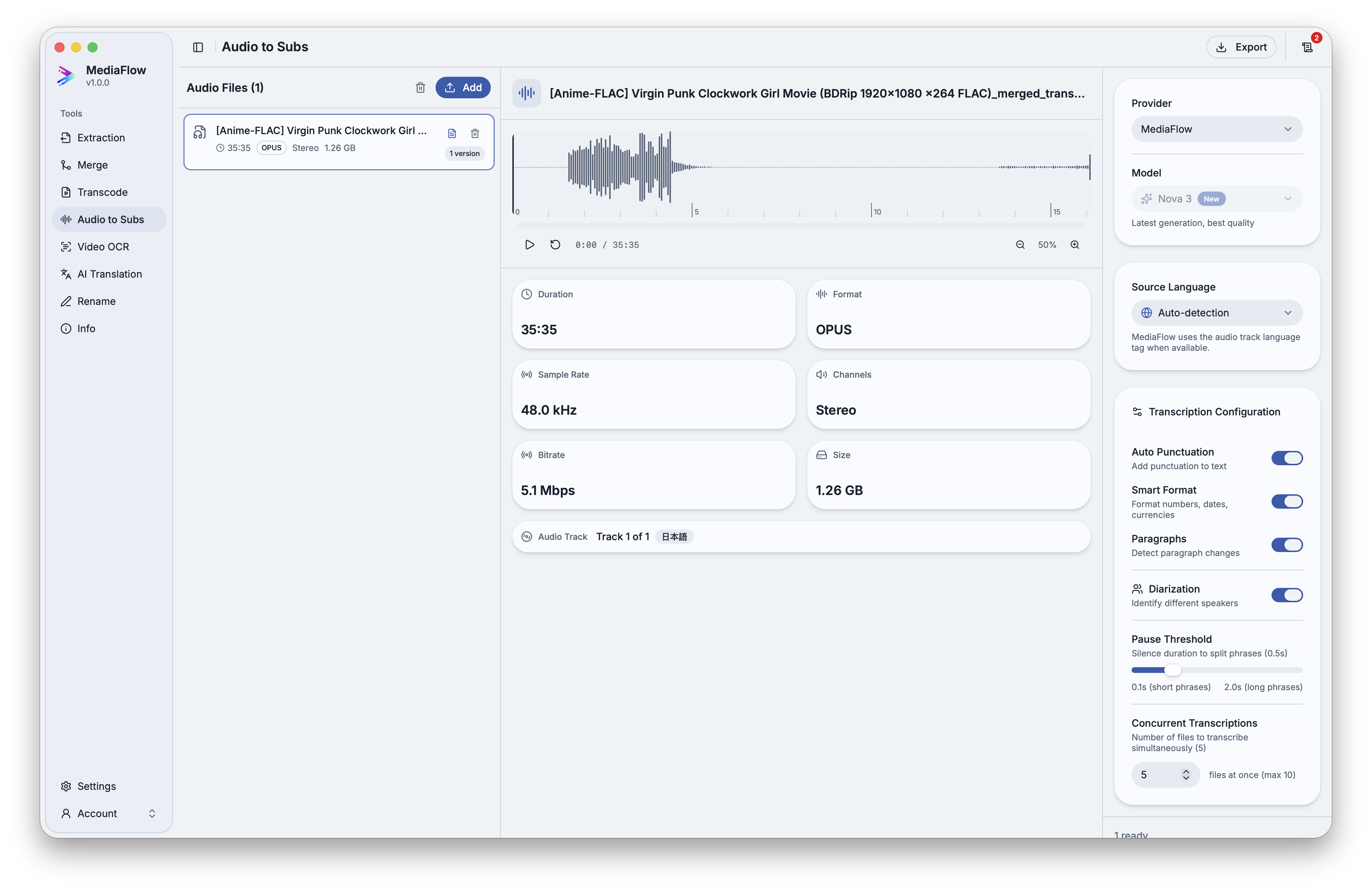
Overview
Audio to Subs turns speech from audio or video files into subtitle files. For files with more than one audio track, choose the one you want before starting.
Works with other tools
Some outputs can be opened again in another MediaFlow workspace.
Formats
Use this section to confirm what you can bring in and what you can save.
Import audio files directly, or video files that contain speech you want to subtitle.
Export subtitles in common subtitle formats, or save a detailed transcript file when needed.
How to use
Follow these steps inside the desktop app. A placeholder appears when a focused screenshot is not available yet.
Drop supported files into the workspace, browse from disk, or import audio saved from Track Extraction.
For files with several audio tracks, choose the track you want to turn into subtitles.
Start the run, follow progress, and review each generated version.
Export the latest, all, or selected versions as SRT, VTT, or JSON.
Screenshots
Use these captures to recognize the workspace and key areas of the tool.