
Video OCR
Recover subtitles that are burned into a video by reading text from the picture.
Overview
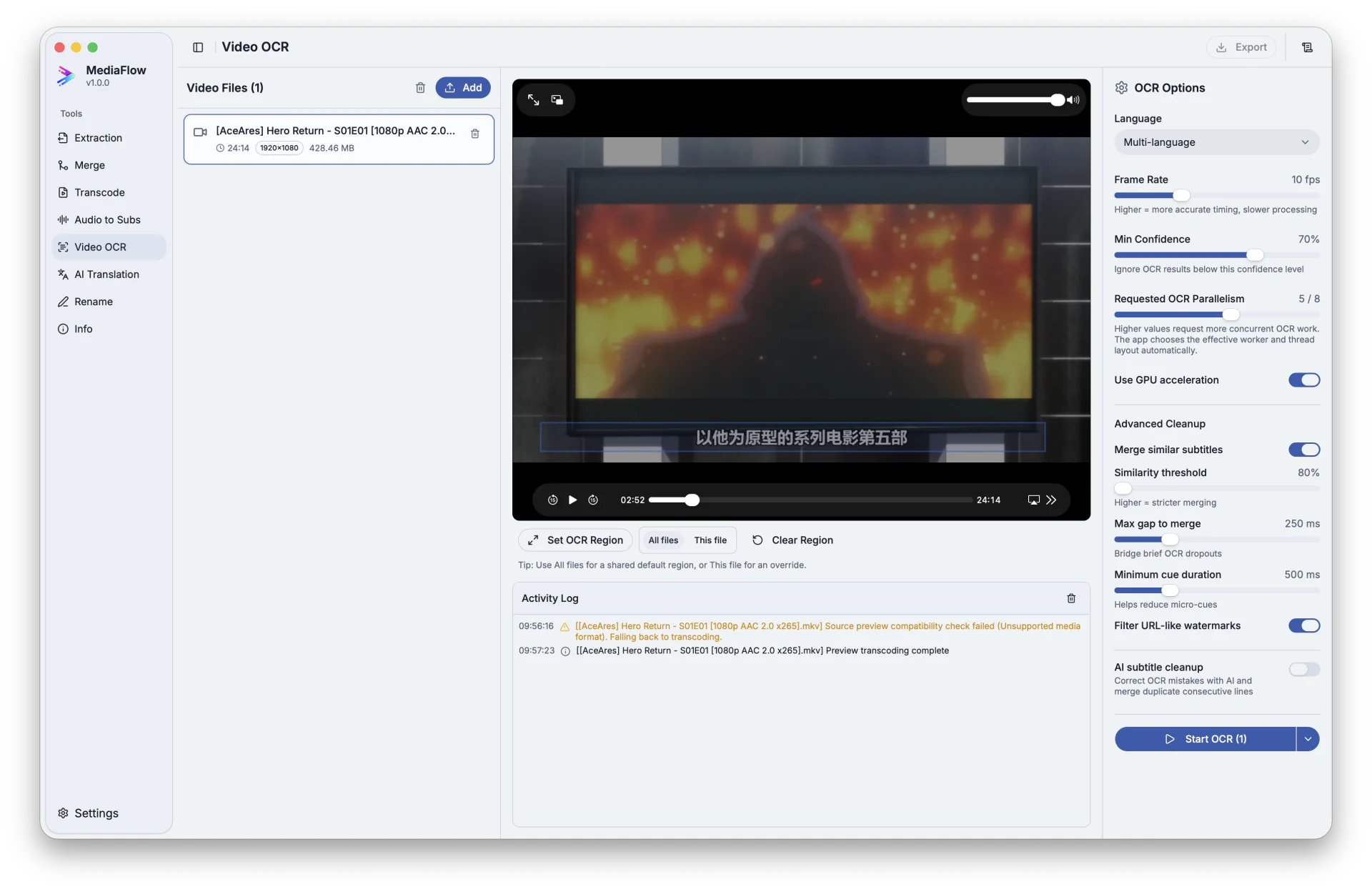
Video OCR reads subtitle text that is already visible inside a video. Select the part of the picture where subtitles appear, then save the result as editable subtitles.
Works with other tools
Some outputs can be opened again in another MediaFlow workspace.
Formats
Use this section to confirm what you can bring in and what you can save.
Import video files where the subtitle text is visible in the picture.
Save recovered subtitles as subtitle files or plain text.
How to use
Follow these steps inside the desktop app. A placeholder appears when a focused screenshot is not available yet.
Import videos and select the file you want to inspect.
Use the default bottom area or draw the area where subtitles appear.
Choose the language, start the run, and let MediaFlow build editable subtitle text.
Retry if needed, then export selected versions as SRT, VTT, or TXT.
Screenshots
Use these captures to recognize the workspace and key areas of the tool.