
Batch Rename
Rename or copy large batches of files with a preview before anything changes.
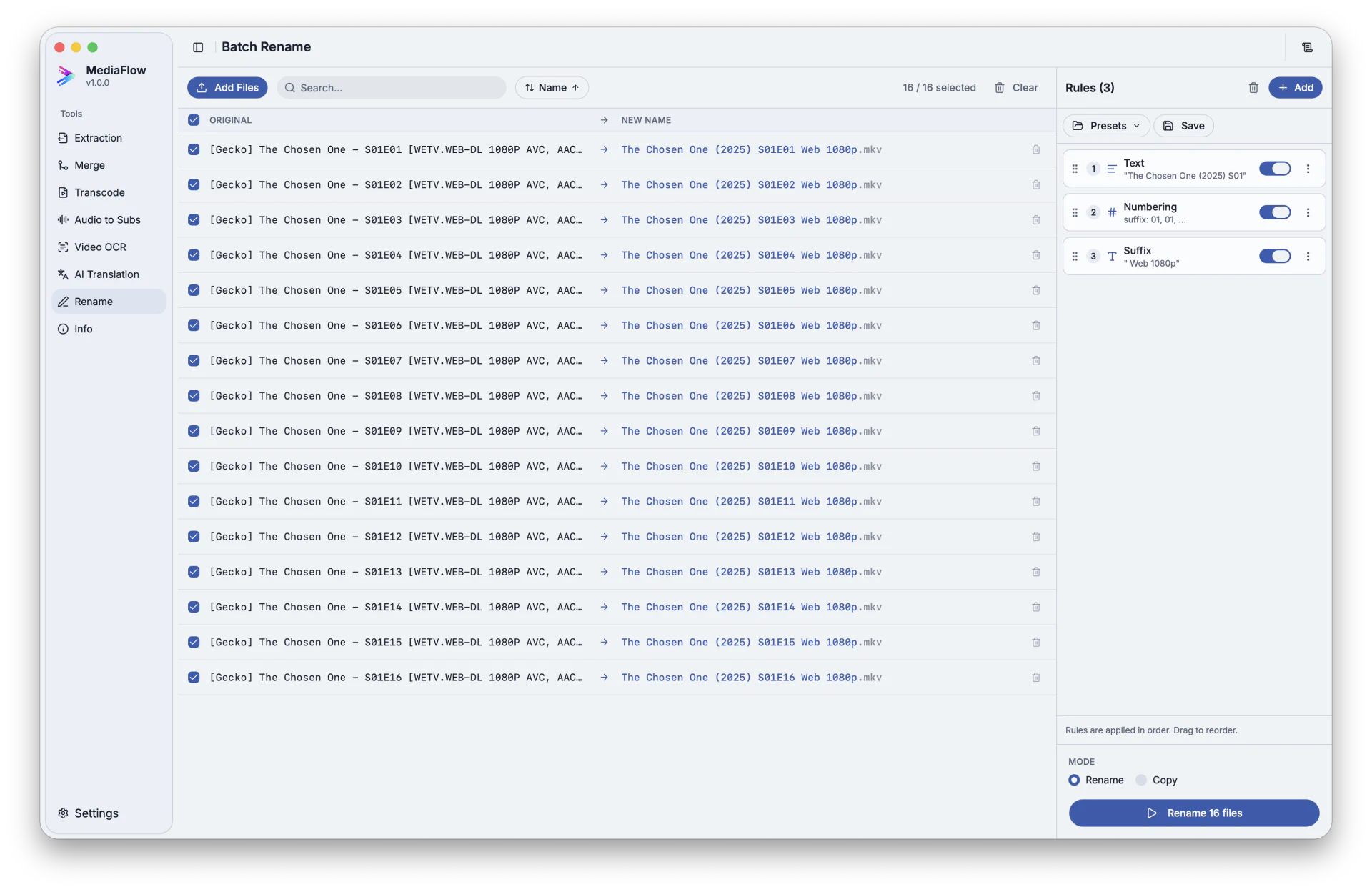
Overview
Batch Rename applies ordered filename rules with a live preview. It can rename files in place or copy renamed files to a destination folder.
Works with other tools
Some outputs can be opened again in another MediaFlow workspace.
Formats
Use this section to confirm what you can bring in and what you can save.
Import any files from disk, plus generated files saved from compatible tools.
Rename files in place, or copy renamed files to a chosen folder.
How to use
Follow these steps inside the desktop app. A placeholder appears when a focused screenshot is not available yet.
Drop files into the workspace, browse from disk, or import generated files from compatible tools.
Combine prefixes, suffixes, replacements, numbering, dates, and text changes.
Sort and select files, review target names, and resolve conflicts before running.
Apply changes in place or copy renamed files to a chosen folder.
Screenshots
Use these captures to recognize the workspace and key areas of the tool.